AI Agent
CycBox ships with an in-app AI Agent that turns natural-language requests into real engine changes. Instead of clicking through forms to set up a serial port, hand-writing a Lua parser, or crafting Modbus message templates, you describe what you want — "parse this PM sensor and publish it to MQTT" — and the agent wires it up for you.
The agent is intended as a co-pilot for the same workflows you'd otherwise drive from the Settings, Lua, and Message Input tabs. It does not replace those panels; everything it does shows up there for you to review, tweak, or undo.
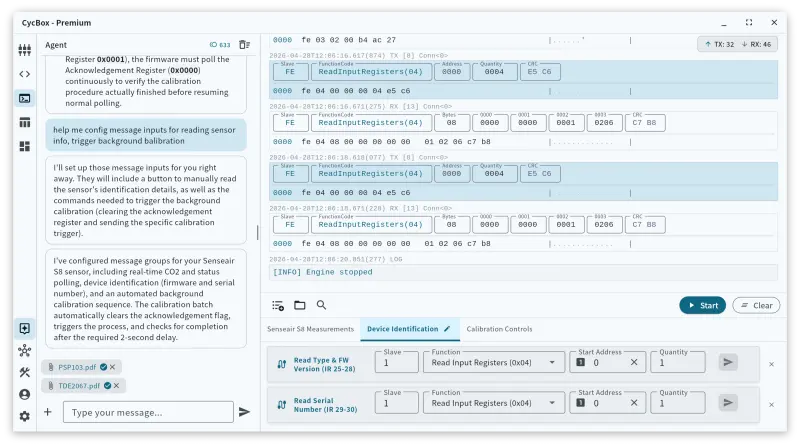
What the Agent Can Do
The agent is built as a small team of specialised sub-agents, coordinated by a routing layer that decides which ones to call for any given request.
| Sub-agent | What it does |
|---|---|
config | Set up transports (Serial, TCP, UDP, MQTT, WebSocket), codecs (Frame, AT, Modbus RTU/TCP, structured frame), transformers, and encodings. |
lua_script | Write or edit the LuaJIT script that parses incoming data and reacts to it. |
message_input | Build outgoing message templates: hex/text frames, Modbus reads/writes, MQTT publishes, etc. |
A single request can chain several of these. For example, asking "poll the Modbus registers on
this datasheet at 9600 baud and publish them to MQTT" will typically run config (to set the
serial port and add an MQTT client), then lua_script (to do the polling and publishing), and
optionally adds matching message_input templates.
Examples of Things to Ask
- Configure a connection — "Set up a serial port at 115200 8N1 on COM5 with the AT command codec."
- Mine a datasheet — attach a device PDF and say "Configure this device and write a parser for the temperature and humidity registers."
- Extend what's already running — "Bump the baud to 19200 and add an MQTT publish for the temperature register." The agent reads the current configuration and writes only what needs to change.
- Edit the Lua script — "Add a threshold alert that sends an ntfy notification when PM2.5 goes over 50." Existing logic is preserved; the agent extends it rather than overwriting.
- Build message inputs — "Add a button that writes 1 to Modbus coil 0x0010."
- Produce a report — "Write up everything we did as a debug report for the rest of the team."
What It Won't Do
- Topics unrelated to CycBox / IoT debugging are politely declined.
- Requests it can't infer from the conversation, attachments, and live state — "help me debug my device" with no further detail — get a clarifying question rather than a guess.
- The agent never executes destructive system actions outside the engine — it edits configuration, Lua code, and message templates. Engine restarts and reloads are handled by the engine itself after a change is applied.
How to Use It
1. Sign In and Check Credits
The AI Agent is a cloud-backed feature billed in AI credits. You need to be signed in to your CycBox account to use it.
- Click the credits chip in the Agent panel header to view your balance or buy more.
- If you run out of credits mid-session, the agent will tell you and stop; topping up resumes normal operation on the next message.
2. Open the Agent Panel
The Agent panel lives alongside the other tabs in the CycBox UI. The header shows your remaining credits and a Clear history button (the trash-can icon) that wipes the conversation and starts a fresh session.
3. (Optional) Attach Context Files
Click the + button next to the chat input to attach files. The agent uses these as ground-truth context — values from a datasheet are treated as if you had typed them yourself.
Supported attachment types:
- PDF datasheets — uploaded and processed on the backend, then made available to the agent as searchable text. (Size limit: 20 MB per file.)
- Text / source / config files —
.txt,.md,.json,.yaml,.yml,.toml,.lua,.c,.cpp,.h,.hpp,.py,.ino,.rs,.js,.ts,.sh. These are read inline from your machine.
Attachments persist for the session. Remove an attachment by clicking the × on its chip.
4. Send a Message
Type your request and press Ctrl + Enter (or click the send button). While the agent is working, the input is disabled and a Stop button appears — you can interrupt at any time.
5. Review and Approve Each Step
For some steps the agent will pause and ask for confirmation before running. By default this covers Lua script changes (because Lua runs arbitrary code on the host), while configuration, message-input, and debug-report steps run automatically.
When a step needs approval, you'll see an approval bubble in the chat with a short description and two buttons:
- Continue — runs the paused step and any remaining queued steps.
- Cancel — discards the paused step and any follow-ups.
Approval is per-step, not per-conversation, so a single request that updates configuration and then a Lua script will apply the config change immediately, then pause on the Lua step.
6. Inspect the Result
Every change the agent applies is visible in the corresponding panel:
- Connection changes → Settings tab.
- Lua script changes → Lua tab.
- Message template changes → Message Input panel.
- Debug reports → rendered as Markdown in the chat; copy and save them however you like.
If the result isn't quite right, just say so in the next message — "actually use 19200 baud and
make the MQTT topic sensors/pm/01" — and the agent will iterate on top of the current state.
Tips for Better Results
- Be specific about the device. Naming the protocol ("Modbus RTU", "AT commands", "WebSocket"), the wire parameters (baud, parity, slave id), or attaching a datasheet always beats "my sensor".
- Let the agent read the datasheet. For unfamiliar devices, attaching the PDF is the single biggest quality improvement — the agent will extract register maps, framing, electrical parameters, and timing details directly.
- Iterate in small steps. Subsequent messages are treated as edits to the live state, not rewrites. "Add an alert when temperature exceeds 80°C" extends the current script rather than replacing it.
- Use the conversation as a debugging log. When you're done, ask for a
debug_report— the resulting Markdown captures the device, the wire format, the configuration that worked, and the pitfalls you hit along the way.
Troubleshooting
- "Sign in to use the AI assistant" — open the account menu and log in to your CycBox account.
- "No AI credits remaining" — top up at cycbox.io/pricing. Your balance refreshes automatically after purchase.
- Network errors / timeouts — the agent talks to the cloud service. If you're on a restricted network, configure a proxy in CycBox preferences; the agent picks it up automatically.
- The agent edited the wrong thing — every change shows up in the Settings / Lua / Message Input tabs and can be reverted there. Or just tell the agent: "undo the last change" / "revert to a plain serial port at 9600 baud".
- Approval bubble didn't appear — only Lua-script steps require approval by default; configuration and message-input changes apply directly.