Remote Debugging
CycBox supports remote debugging through a small headless agent called cycbox-edge. You run cycbox-edge on a
machine that has physical access to the device (the edge machine — for example a Raspberry Pi next to a Modbus
sensor, or a workstation in a lab), then connect to it from the CycBox UI on your own laptop. The UI behaves exactly
the same as in local mode — the engine, codecs, Lua scripts and dashboards just run on the edge machine instead of
locally.
This is useful when:
- The device is in a different location (lab, factory floor, customer site) and you cannot physically be there.
- The device is attached to a headless gateway with no display.
- You want a long-running unattended engine that you occasionally inspect from a GUI.
Why It's Secure
The link between the UI and cycbox-edge is built on top of a P2P networking that provides:
- End-to-end encrypted transport (QUIC + TLS 1.3). Every byte exchanged between the UI and the edge agent is encrypted with keys derived from the two endpoints' long-term identities. Relay servers only see ciphertext and cannot decrypt the traffic.
- Identity rooted in a public key. The edge agent's
endpoint_idis the public half of an Ed25519 key generated on first run. The UI authenticates the agent by this key, so a man-in-the-middle cannot impersonate it without stealing the secret key from the edge machine. - No inbound ports. Both sides establish the connection outbound through NAT/firewalls using hole punching, with relay servers as a fallback. You don't need to open a port on the edge machine's router or expose anything to the public internet.
- Mandatory password handshake. On top of the cryptographic identity,
cycbox-edgerequires a password before any RPC is served. A random 16-character password is generated on first run; without it, connecting peers are rejected immediately.
In short: the connection is private even when traversing public relays, and the agent only accepts callers who both know its public endpoint id and present the correct password.
Step 1 — Install cycbox-edge on the Edge Machine
cycbox-edge is shipped as a single binary in the CycBox release artifacts. Download the build that matches the edge
machine's OS and architecture from the
GitHub Releases page, extract it, and place the binary somewhere on your
PATH (e.g. /usr/local/bin/cycbox-edge).
You can verify the install with:
cycbox-edge --help
Step 2 — Generate a Config File
cycbox-edge is config-driven. On first run, if no config file exists at the path you give it, it generates a sample
config (including a fresh secret key and password) and prints it to stdout — then exits without starting the server.
Run it once to bootstrap:
cycbox-edge
Example output:
# No config found. Save the following to config.yaml and re-run:
# endpoint_id: 5f4a9c...e1b2
debug: false
edge_key: 9b3a...c7
relays:
  - https://us.cycbox.io/
  - https://eu.cycbox.io/
  - https://cn.cycbox.com/
password: aB3xK9mQ7nP2wL5v
data: ./data
auto_start: false
Save the YAML to config.yaml. Two values are important for connecting from the UI:
endpoint_id(printed as a comment above the config) — the public identity of this agent. It is derived fromedge_key, so it never changes as long as you keep the sameedge_key.password— required from any UI connecting to the agent.
Anyone with both the endpoint id and the password can drive the engine — start/stop it, change its configuration, read live data, and inject messages. Treat them like SSH credentials. Don't post them in public chat, screenshots, or issue trackers.
Config Fields
| Field | Purpose |
|---|---|
edge_key | Hex-encoded 32-byte Ed25519 secret key. The agent's identity. Auto-generated on first run. |
password | Mandatory password required from connecting UIs. Auto-generated on first run. |
relays | List of relay URLs used for hole-punching when direct P2P fails. Defaults cover US, EU and CN. |
data | Directory used to persist engine state and config.lua (the exported workflow). Defaults to ./data. |
auto_start | If true and data/config.lua exists, the engine is started automatically on launch. |
debug | Enable verbose logging. |
Step 3 — Run cycbox-edge
Start the agent in the foreground:
cycbox-edge --config ./config.yaml
You should see something like:
[INFO] Starting CycBoxEdge...
[INFO] ================================
[INFO] Endpoint ID: 5f4a9c...e1b2
[INFO] ================================
Leave the process running. For long-running deployments, supervise it with systemd, tmux, screen, Docker, or
your preferred service manager.
Accessing Serial Devices
If your device is connected over USB serial on the edge machine, make sure the user running cycbox-edge has access
to the serial device (on Linux this usually means adding the user to the dialout or uucp group, then re-logging
in).
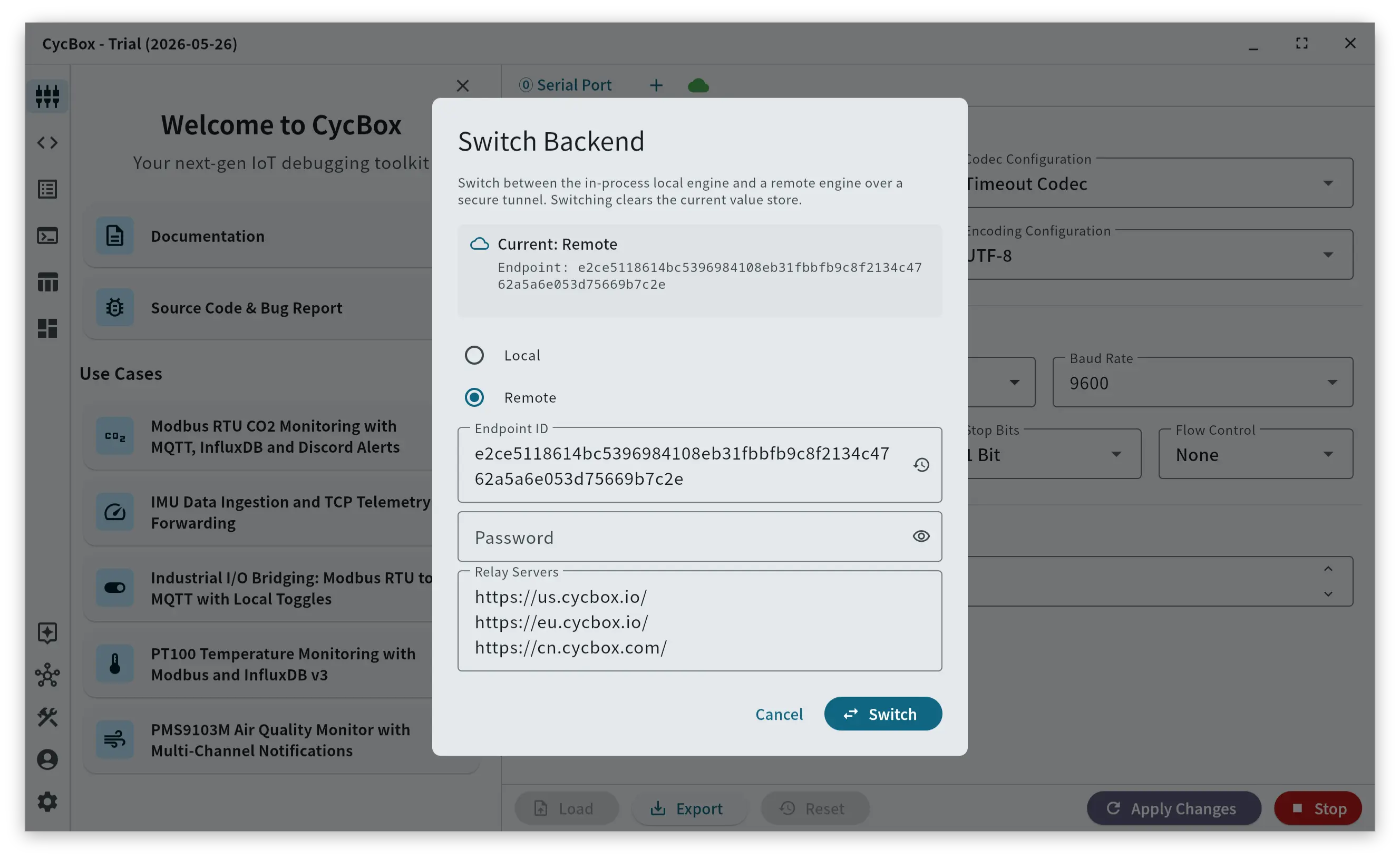
Step 4 — Connect from the CycBox UI
On your laptop, open CycBox and switch the backend to the remote agent:
- Open the Switch to remote debugging dialog .
- Choose Remote as the backend mode.
- Fill in the connection details:
- Endpoint ID — paste the value from
cycbox-edge's startup logs (or from the# endpoint_id:comment in your config). - Password — paste the
passwordfrom the agent's config. - Relays — one URL per line. Use the same three defaults shown in the config unless your network requires a specific region.
- Endpoint ID — paste the value from
- Click Switch.
CycBox will establish the encrypted P2P tunnel, authenticate with the password, and reload the manifest from the remote engine. Once connected, every screen — Terminal, Settings, Dashboard, Lua script editor — operates against the remote engine just like it would against a local one.
The dialog also keeps a history of recent endpoints so you can switch back to a previously used agent without re-entering the details.
Switching the UI to a remote backend requires a valid CycBox Pro premium license. Running cycbox-edge itself does
not require a license.
Switching Back to Local
Re-open the Switch Backend dialog, pick Local, and click Apply. The UI reattaches to the local engine embedded in the app.
Optional: Auto-Start a Workflow on Boot
If you want the remote engine to come up running a specific workflow without a UI ever connecting, you can pre-load a Lua config file:
- Export the workflow from the CycBox UI as a
.luafile (see Docker Deployment for the file format). - Copy it to the edge machine as
<data>/config.lua(default:./data/config.lua). - Set
auto_start: trueinconfig.yaml. - Restart
cycbox-edge.
On launch, the agent loads config.lua, applies it on top of the default manifest, and starts the engine
automatically. A UI can still connect later to inspect live data or change the configuration.
Troubleshooting
The UI hangs on "Switching..." and never connects.
- Confirm the agent is still running and reachable on the network. Both the edge machine and your laptop need outbound internet access to at least one of the configured relays.
- Double-check that the
endpoint_idin the UI matches the one printed bycycbox-edge. A single wrong character will route you to a non-existent peer. - Make sure the relay URLs in the UI overlap with the ones the agent is using.
Authentication fails immediately.
- The password in the UI does not match
password:in the agent's config. Passwords are case-sensitive.
Lost the password or want to rotate credentials.
- Stop
cycbox-edge, editpassword:inconfig.yaml(any non-empty value works), and restart the agent. All connected UIs will need to re-enter the new password. - To rotate the identity itself, delete
edge_key:(set it to an empty string) and restart — a fresh key and endpoint id will be generated. Note that this invalidates any saved history entries in the UI.