MCP Integration
CycBox provides an MCP server that exposes IoT debugging capabilities to AI agents like Claude. This allows AI assistants to help you configure connections, write Lua scripts, control the engine, and debug protocol issues.
Overview
The MCP server runs as an HTTP service that implements the Model Context Protocol, enabling AI agents to:
- Read and modify connection configurations (transport, codec, transformer)
- Write and validate LuaJIT scripts for message processing
- Control the IoT engine (start, stop, restart)
- Hot-reload Lua scripts without interrupting connections
- Retrieve logs for debugging
Requirements
- Premium License: MCP server functionality requires a valid CycBox Pro premium license
- Network Access: The server listens on a configurable host/port (default:
127.0.0.1:8654)
Configuring the MCP Server
1. Open MCP Server Settings
In CycBox UI, navigate to the MCP server configuration dialog (accessible from the main menu or settings).
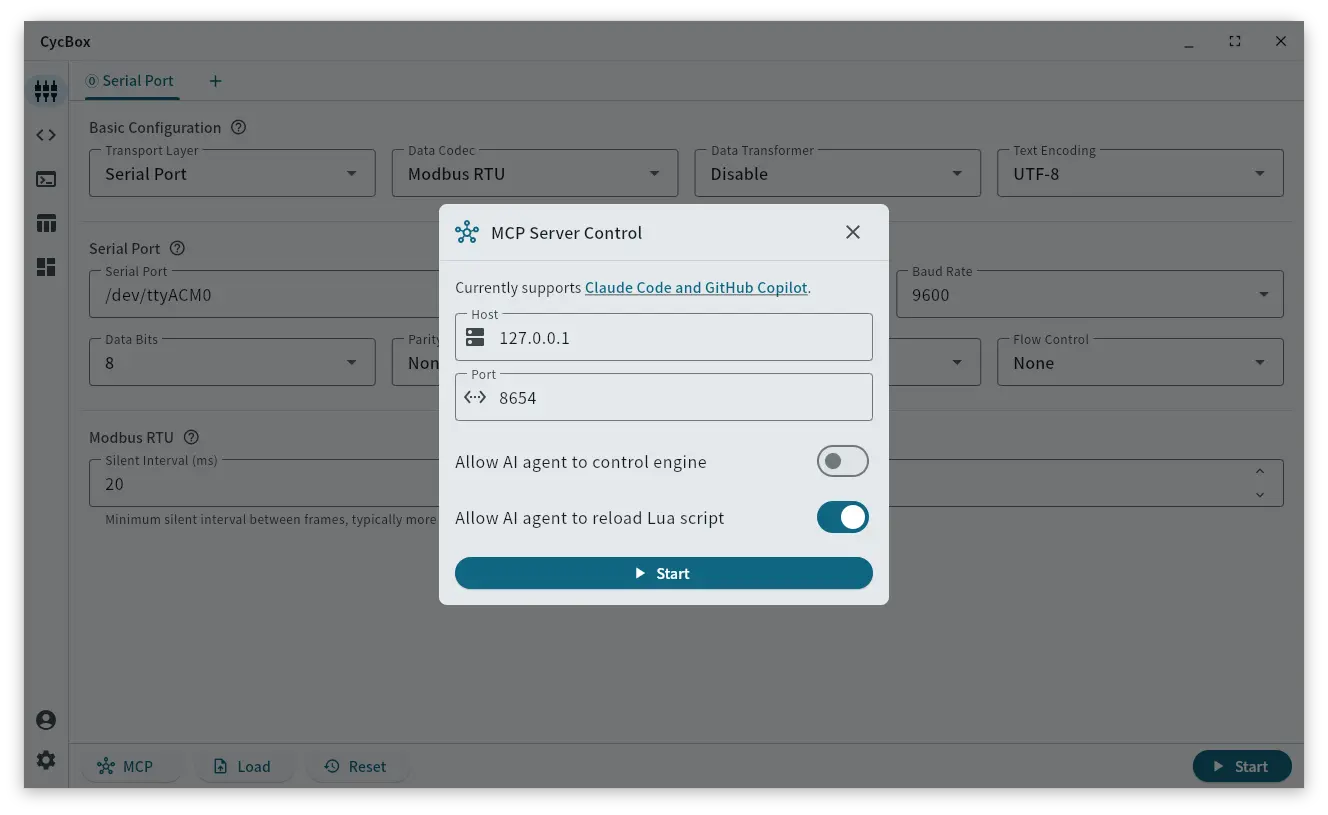
2. Configure Server Settings
-
Host: The network interface to bind to (default:
127.0.0.1)- Use
127.0.0.1for local-only access (recommended for security) - Use
0.0.0.0to allow network access (use with caution)
- Use
-
Port: The TCP port number (default:
8654)- Ensure this port is not in use by other applications
- If you change this, remember to use the new port when adding to Claude Code
3. Set AI Agent Permissions
Control what actions the AI agent can perform:
-
Allow agent to control engine: Permits the AI to start, stop, and restart the IoT engine
- Enable this if you want the AI to help with engine lifecycle management
- Disable for read-only assistance (configuration review, script writing)
-
Allow agent to reload Lua: Permits the AI to hot-reload Lua scripts
- Enable this if you want the AI to test script changes immediately
- Scripts are validated before reload to prevent errors
4. Start the Server
Click the Start button to launch the MCP server. When running, you'll see:
- Server status indicator showing "Running"
- The server URL (e.g.,
http://127.0.0.1:8654) - A Stop button to shut down the server
Auto-Start Behavior: If the MCP server was running when you last closed CycBox, it will automatically start when you reopen the application using the same configuration.
Note: The server must remain running while the AI agent is connected. Stopping the server will disconnect the agent.
Adding to Claude Code
Once the MCP server is running, add it to Claude Code using the following command:
claude mcp add CycBox --transport http http://localhost:8654
Important: Replace localhost:8654 with your configured host and port if you changed the defaults.
Verifying the Connection
After adding the server, Claude Code can now:
- Get details about CycBox with
claude mcp get CycBox - Automatically use CycBox tools when you ask for IoT debugging assistance
Example prompts you can try:
- "Show me the current connection configuration"
- "Help me write a Lua script to parse Modbus RTU messages"
- "Start the engine and check for any errors"
- "Update the serial port configuration to use 115200 baud"
Adding to VSCode (GitHub Copilot)
If you're using GitHub Copilot in VSCode, you can add the MCP server through the VSCode interface:
-
Open the Command Palette
- Windows/Linux: Press
Ctrl+Shift+P - Mac: Press
Cmd+Shift+P
- Windows/Linux: Press
-
Run the MCP command
- Type
MCP: Add Serverand select it from the list
- Type
-
Choose connection type
- Select
HTTPas the transport type
- Select
-
Enter server URL
- Input your MCP server URL (e.g.,
http://localhost:8654) - Use the host and port configured in CycBox UI
- Input your MCP server URL (e.g.,
-
Enter server name
- Provide a name for the server (e.g.,
CycBox)
- Provide a name for the server (e.g.,
Once added, GitHub Copilot in VSCode will have access to all CycBox tools and resources when assisting with your IoT debugging tasks.
Available Tools
The MCP server exposes the following tools to AI agents:
| Tool | Description | Requires Permission |
|---|---|---|
get_config_schema | Discover available configuration fields for component groups. Call with group_names=["app"] first, then with specific component names to get their field schemas | None |
get_configs | Retrieve current transport/codec/transformer configuration as structured JSON | None |
set_configs | Update connection configuration (structured JSON, validated by schema). Use get_config_schema first to discover available fields | None |
get_lua_script | Retrieve the current Lua script source code (LuaJIT / Lua 5.1) | None |
set_lua_script | Update and validate Lua script (syntax checked before saving). Must use LuaJIT (Lua 5.1) syntax | None |
reload_lua_script | Hot-reload Lua script without stopping engine (creates new Lua VM). Returns reload status and logs | Allow agent to reload Lua |
start_engine | Start the IoT engine with current configuration, wait 3s for initial logs. Returns startup status, connection IDs, and logs | Allow agent to control engine |
stop_engine | Stop the running IoT engine | Allow agent to control engine |
restart_engine | Stop and restart the engine with current configuration, wait 3s for initial logs. Returns startup status, connection IDs, and logs | Allow agent to control engine |
get_logs | Retrieve recent Lua script logs and hook errors (max 100 entries) | None |
Available Resources
The MCP server also exposes resources that AI agents can read for reference:
| Resource URI | Description |
|---|---|
cycbox://api/lua-api | Complete Lua scripting API reference (hooks, helpers, modules) |
cycbox://example/{name} | Example scripts with embedded JSON config blocks |
Agents can list all available resources and read them to understand the Lua API and see working examples before writing scripts or configurations.